
Editing & deleting redirects
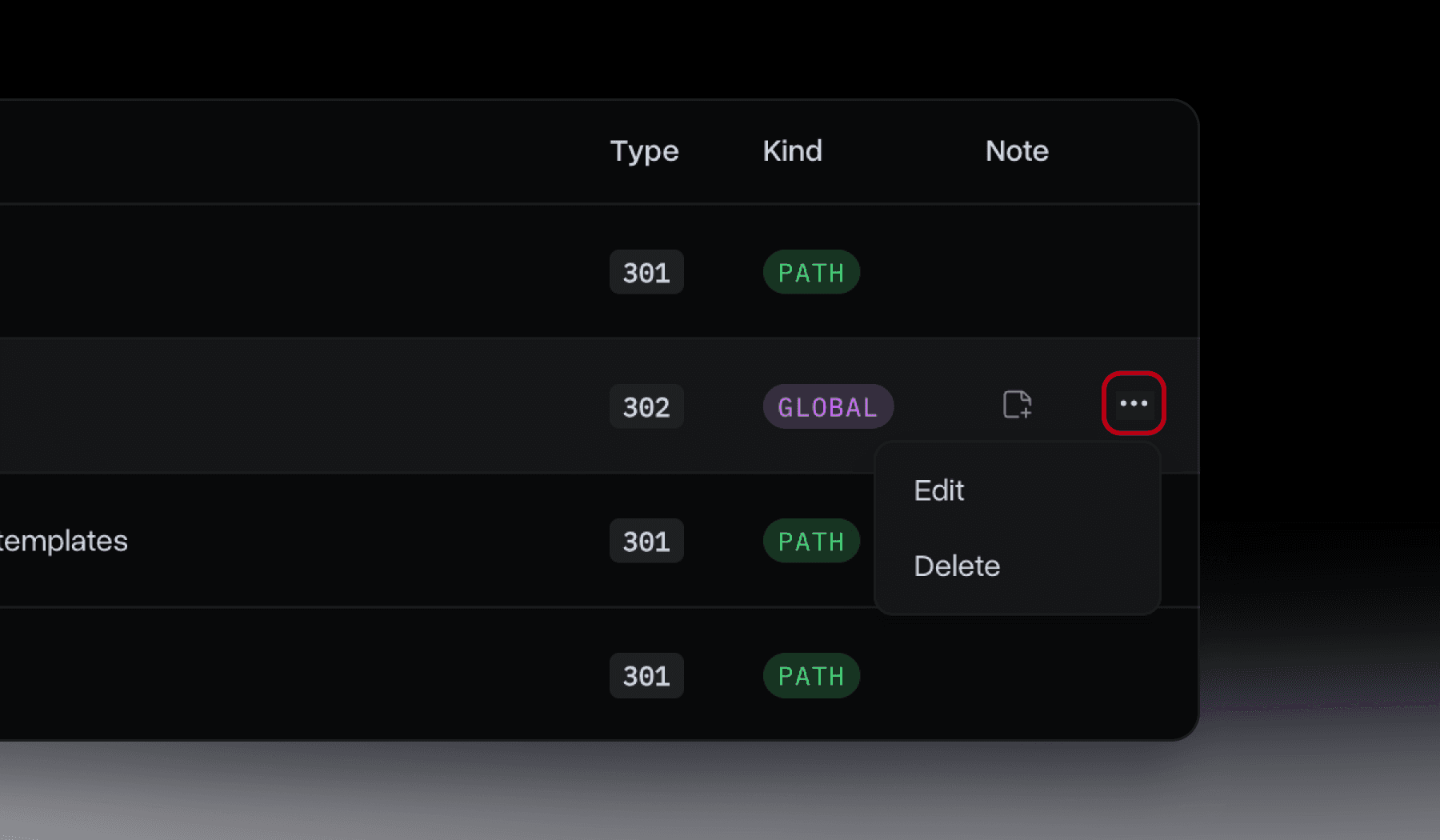
Both actions start from the same place: the ⋯ menu on a rule's row.
Opening a rule to edit
Click the ⋯ on any rule row (desktop table or mobile card) and select Edit. On mobile, tapping the card itself also opens a detail view with the same Edit and Delete options.
What you can change
Everything about the rule is editable: the Global fallback checkbox, the source path (Old URL), the destination (New URL), and the redirect type. HTTPS upgrades and www handling are automatic and not something you set per rule.
Changing the source path
The source path isn't locked after creation, you can edit it freely. The same rule applies as at creation: change it to a path that already exists on the domain, and the save is rejected with "A rule for this path already exists."
Editing a note
Notes are separate from the main edit form. Click the note icon on the row to open a small note field, add, edit, or clear it independently of the rule itself.
Deleting a rule
Select Delete from the same ⋯ menu (or the mobile detail view). It's immediate, there's no confirmation step and no undo, the rule disappears from the list right away. If you're not sure, it's worth double-checking before you click.
How fast changes take effect
Creating, editing, or deleting a rule takes effect within a second or two, redirects update at the edge almost immediately, no waiting around for changes to propagate.