
Adding a Domain
Adding a domain takes seconds. The real setup work happens in DNS, covered in DNS Setup Guide, this article is about getting the domain into your account correctly and understanding what you're actually adding.
Before you start
You don't need to prove ownership upfront, that happens later through DNS verification. There are no restrictions on domain type or TLD, if it's a valid domain, you can add it. You will need access to manage DNS records for the domain, either through your registrar or DNS provider (Cloudflare, Namecheap, GoDaddy, and similar), since you'll add records there once the domain is in your account. Nothing about your existing site or content needs to move, adding a domain here only affects where traffic is redirected to, not where it's hosted.
What counts as one domain
Apex domains
Adding an apex domain (e.g. example.com) covers all its variants automatically: www.example.com, the bare domain, http, and https all route through that single entry. You don't add www.example.com separately, it's already included.
Subdomains
A subdomain is treated as a fully separate domain. If you're redirecting example.com and also want to redirect blog.example.com, that's two entries, added and configured independently.
Why the distinction matters
Each entry, apex or subdomain, counts toward your plan's domain limit (see Plans & Billing). It also means rules are scoped per entry: a rule on example.com won't apply to blog.example.com unless you add that subdomain too and set rules there.
A quick example
Rebranding your whole site to a new domain only needs one entry, the apex, since www/non-www/http/https are already covered. Redirecting just a blog hosted on a subdomain, while leaving the rest of the site untouched, needs that subdomain added as its own domain.
Adding a domain
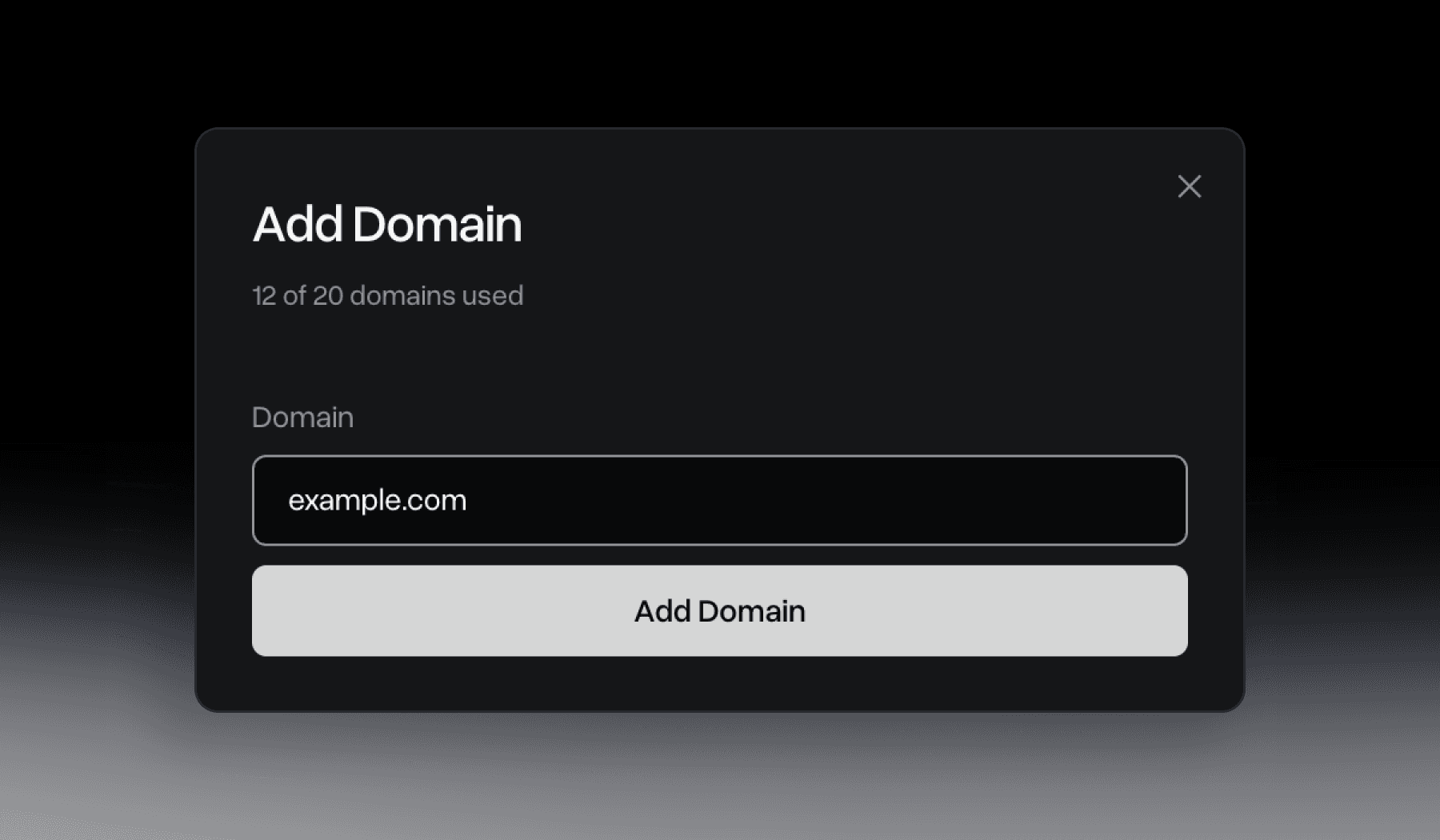
From your dashboard, click "Add domain" and type in the domain you want to redirect from, no need to include http:// or https://. Confirm, and Redirect Supply generates the DNS records for it: apex domains typically need four records, subdomains need two.
Full breakdown: DNS Setup Guide.
If a domain won't add
Two situations block adding a domain:
Already connected to your account
You'll see "You already have this domain connected." Check your domain list first, it's likely already there under a slightly different variant, remember apex domains already include www.
In use by another account
A domain can only be connected to one Redirect Supply account at a time. If someone else has already added it, you won't be able to add it until they remove it. If you believe this is a mistake, for example a domain you own that's connected to an old or wrong account, contact support@redirect.supply.
What happens right after
A newly added domain starts completely empty, no rules are created automatically, you build those next. Its status begins as Pending until the required DNS records are added and verified. DNS changes typically propagate within a few minutes, though it can take longer depending on your provider. Once verified, the domain flips to Connected. See Domain Statuses for what each status means. Once connected, head to Creating a Redirect to set up your first rule.
Support
Stuck adding a domain? Email support@redirect.supply and we'll help.